You can invite team members to join your Checkly account to view and manage all checks and related settings; team members can have different roles.

Inviting team members

Go to the Members section of your account overview. Add the email address of each user you want to invite. The invitation shows in Pending invites under the form until it’s accepted. You can resend or remove it there. It’s valid for 30 days.
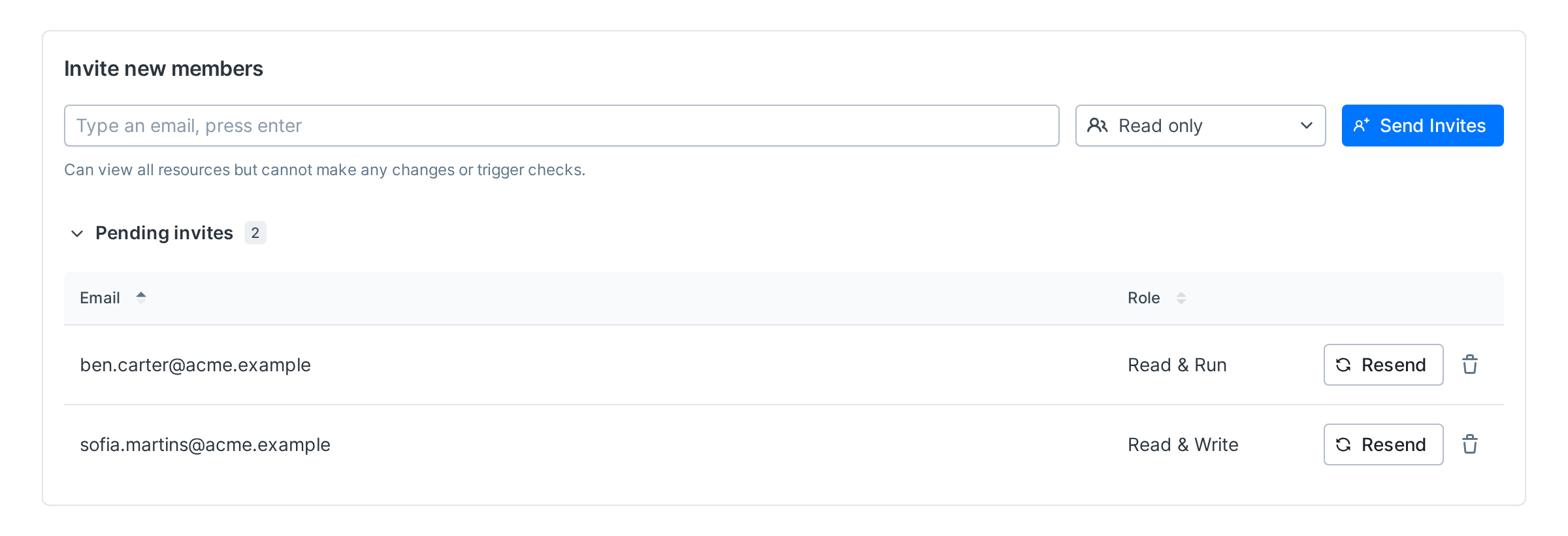
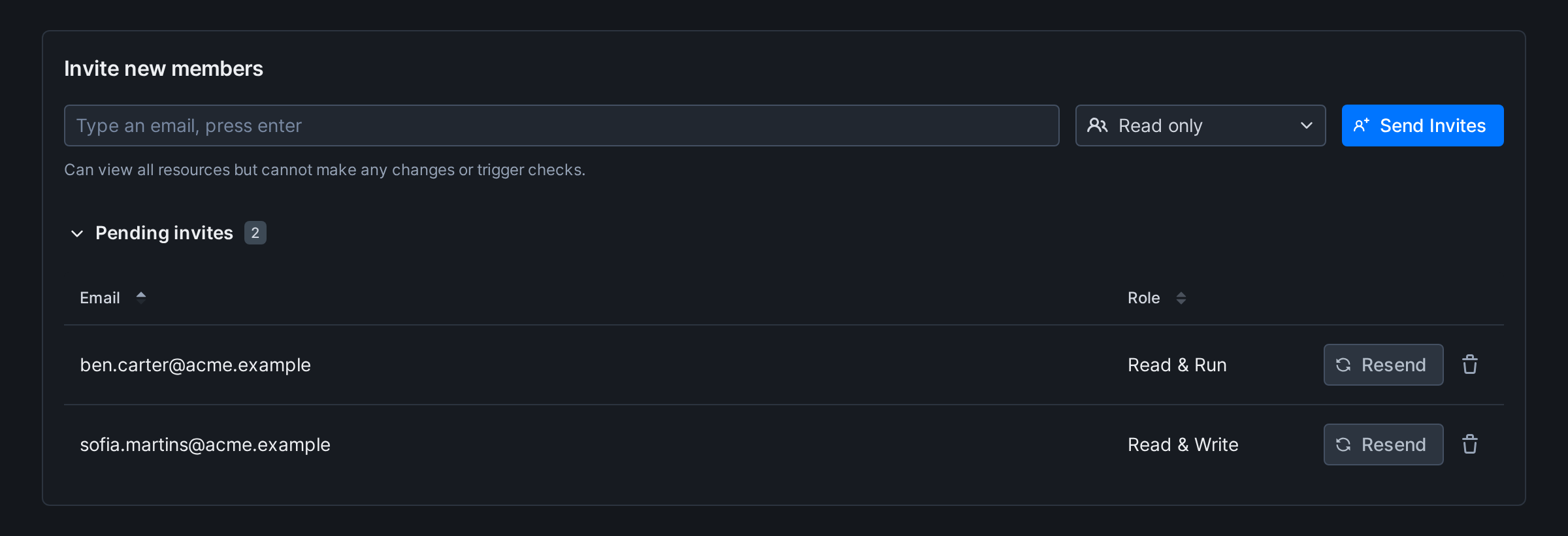
The Invite new members card with the email field, the role picker and the Send Invites button, and the Pending invites list below with two invitationsThe Invite new members card with the email field, the role picker and the Send Invites button, and the Pending invites list below with two invitations

Accepting invites

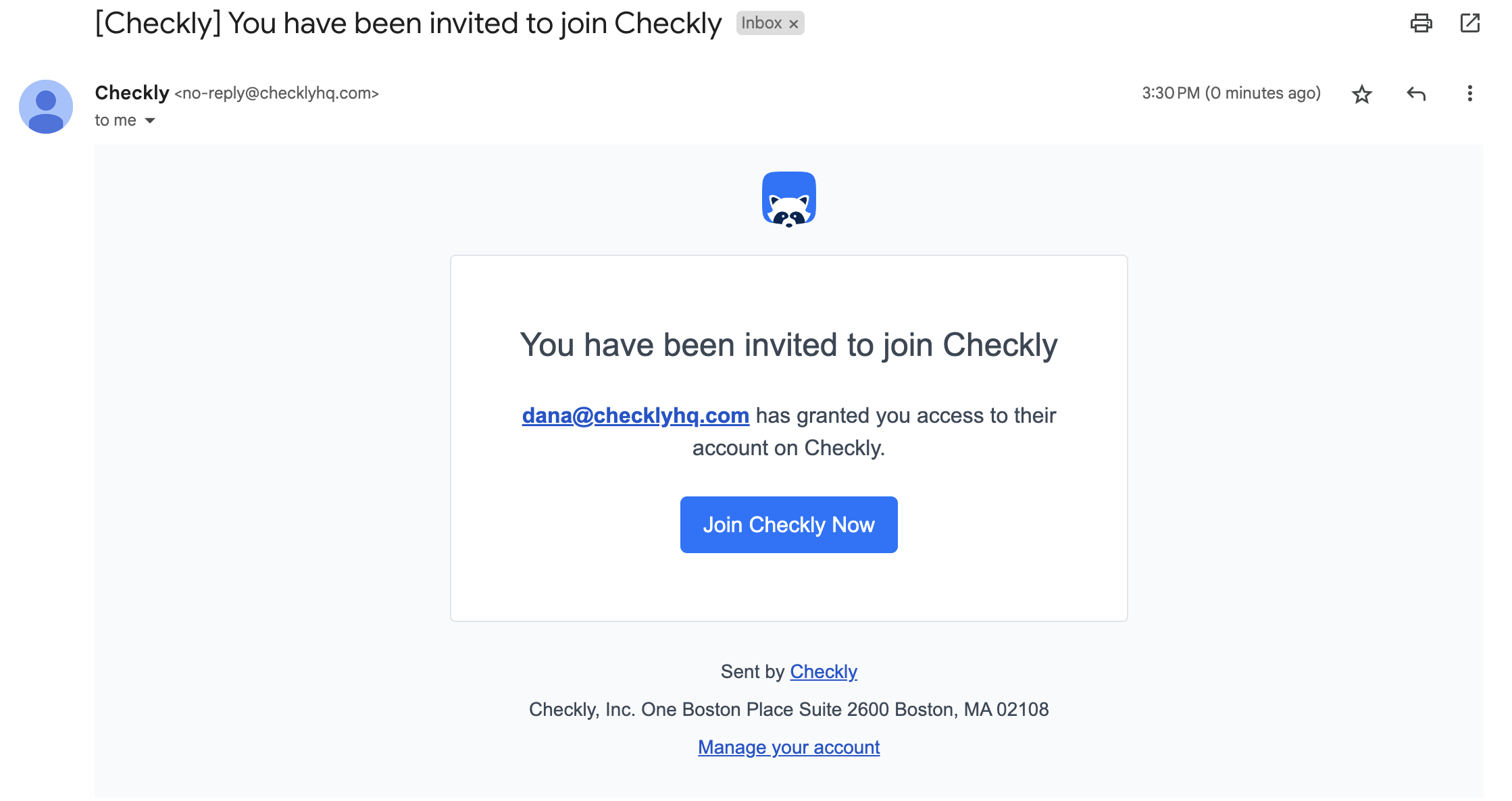
If you’re invited by a teammate, you will get an email with a link to an invite page. This link contains a unique, single-use token that allows you to join the team. accept team invite The invite page shows who invited you, the account and role, and the email address the invitation is for. Only that email address can accept the invitation. If you’re logged in with another address, the page asks you to log out and log in with the invited one. The page offers one way to sign in, picked for the invited address, for example Create your account if that address has no Checkly account yet, or a sign-in your existing Checkly user already uses, such as Continue with Google or Log in to join. Use the button below it to sign in another way. After you sign in, you join your teammate’s account.
If the invited user doesn’t receive the email, their address may be on our email suppression list. Please email support@checklyhq.com for help with this.